Mac display settings
Mac display settings: arrangement, resolution, mirroring and fixes
To open Mac display settings, choose Apple menu → System Settings → Displays. If more than one screen is connected, select the display you want to change first.
Use Arrange to match your desk layout, resolution to change text size and workspace, and Use as to choose an extended desktop or mirroring. Start with the task you need below.
By Yuto Takahashi, DeskCommit developerLast updated: Last verified: Verification: checked against Apple documentation
Find the setting you need
| What you want to change | Where to start |
|---|---|
| Open display settings | Menu path and keyboard shortcut |
| Screens are reversed or the pointer cannot cross an edge | Arrange your displays |
| Show different windows or the same picture on two screens | Extended desktop and mirroring |
| Choose a different primary screen | Main display |
| Make text larger or fit more windows | Resolution and scaling |
| Select 60Hz, 120Hz or another rate | Refresh rate |
| Change brightness, color or portrait orientation | Appearance and rotation |
| A screen or an option is missing | Troubleshooting by symptom |
Open Displays in System Settings
- Open the Apple menu at the top left of the screen.
- Choose System Settings, then Displays in the sidebar. Scroll the sidebar if necessary.
- If several displays appear, select the name of the screen you want to adjust.
On an Apple keyboard with brightness keys, Option–Brightness Up or Option–Brightness Down also opens Displays. You may need Fn when the top row is configured as standard function keys. See the display settings shortcut guide for the keyboard options.
This guide uses the System Settings terminology introduced in macOS 13 Ventura. macOS 12 Monterey and earlier use System Preferences. Labels and available controls vary with macOS and the connected hardware. Apple's Displays settings reference lets you choose the macOS version you use.
Arrange displays to match your desk
If your external monitor is on the left but your pointer reaches it through the Mac's right edge, change the layout macOS uses.
- Open Displays and click Arrange.
- Drag the rectangles into the same left/right or above/below relationship as the physical screens.
- Click Done, then move the pointer and a window between the displays to check the result.
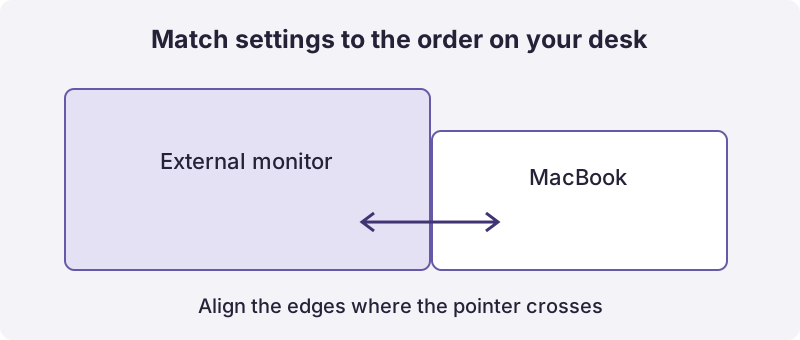
If the pointer stops along part of an edge, look at where the rectangles touch. Different screen heights and scaled sizes can leave only part of the boundary available for crossing. Adjust their vertical positions so the pointer crosses where you normally use it.
If Arrange is missing, first check whether macOS detects both screens. If they show the same picture, check Use as and the mirroring setting below.
Choose an extended desktop or mirroring
Extend the desktop for separate windows; mirror it for the same picture on both screens. For example, extension lets you keep reference material on a monitor while working on the Mac. Mirroring is useful when showing the same desktop to other people.
- In Displays, select the screen whose role you want to change.
- Open the Use as menu.
- Choose Extended display for separate workspace, or the option to mirror the intended screen.
These options require an external display on a MacBook or iMac, or two or more displays on a Mac without a built-in screen, such as a Mac mini or Mac Studio. The wording for stopping mirroring can vary by version. Apple's extend or mirror instructions describe the available roles.
Change the main display
Select the intended screen in Displays, open Use as, and choose Main display. Choosing the main screen and moving a screen to the left or right are separate settings.
Older System Preferences instructions may show a white menu bar that you drag between rectangles. If your interface has no such diagram, check Use as instead. Dock and menu bar behavior also depends on settings such as Spaces, so their position alone is not a reliable way to identify the main screen. Continue with the main display guide for more detail.
Change resolution and text size
- Select the target screen in Displays.
- Start by checking its Default appearance.
- Choose a larger-text option if text is too small, or a more-space option to fit more windows. The labels and presentation depend on the display.
- Open your everyday apps and compare readability with the amount of workspace available.
If resolutions appear as thumbnails, Control-click one and choose Show List to compare numerical values. You can also find a Show resolutions as list option under Advanced on supported versions.
Changing the apparent size does not add physical pixels to the panel. A high-density screen can use larger text while fitting less content. Show all resolutions can include low-resolution modes; a longer list does not mean every option will look equally sharp.
If the result is difficult to read, return to Default while the screen is usable. If a resolution change leaves the screen blank, consult Apple's resolution and recovery instructions on another display or device.
For mode labels and keyboard controls, see the resolution guide.
Choose a refresh rate
Select the screen and choose an available value under Refresh rate. Resolution affects detail and apparent size; refresh rate, measured in Hz, describes how often the picture updates each second.
Whether 120Hz, 144Hz or another value is available depends on the whole connection: Mac, port, display, cable, adapter or dock, and selected resolution. If a rate is missing, check that combination against the hardware specifications. Try a direct connection to the Mac to isolate a dock. A utility cannot guarantee modes the hardware path does not support. See Apple's connection, resolution and refresh-rate checks.
For a focused walkthrough, see changing refresh rate and checking missing 120Hz or 144Hz options.
Adjust brightness, color and rotation
Select the screen, then move the Brightness slider to adjust its light output. Toggle True Tone for color that responds to ambient light, or open Night Shift to schedule a warmer appearance.
| Control | What it changes | If it is missing |
|---|---|---|
| Brightness | How bright the screen is | Some external monitors require their own buttons or on-screen menu |
| True Tone | Color adjusted to ambient light | Check support for the Mac and display |
| Night Shift | Warmer colors and a switching schedule | Check Apple's supported configurations |
| Color profile | The profile used to display color | Use a profile appropriate to the display and workflow; an unrelated profile is not a color match |
| Rotation | Image orientation, such as 90 degrees | Available only with supported external displays |
See Apple's instructions for brightness and rotation. Before placing a monitor vertically, check its stand and manual for physical rotation support too.
Fix missing displays and settings
First distinguish a missing screen from a missing control on a screen that already works.
| Symptom | First check | Then check |
|---|---|---|
| External screen is absent from Displays | Monitor power, selected input and both ends of the cable | Connect directly without the dock. Hold Option to reveal Detect Displays and try detection |
| Arrange or Use as is missing | Whether macOS detects multiple screens | If both show the same picture, check their role and mirroring state |
| A resolution or refresh rate is unavailable | Whether the intended screen is selected | Whether the Mac, monitor, cable and dock support that resolution and rate together |
| No brightness slider | Whether the external monitor supports brightness control from macOS | Use the monitor's own controls |
| Only the third screen stays blank | Count built-in and external screens separately | Check the exact Mac model's display limit, resolution and refresh-rate conditions |
| No Rotation option | Whether you selected a supported external display | Check that device's capabilities; controls are not identical for every screen |
Do not assume all M-series Macs have the same display limit. Identify the model and chip in About This Mac, then use Apple's external display connection guide to find the relevant specifications. For a connection-first walkthrough, use the external display setup checklist.
For repeated display changes
Change arrangement and resolution from the keyboard
DeskCommit puts arrangement, resolution, refresh rate and the main display in one palette. Review the pending display state before applying it.
Use the macOS steps above for an initial setup. If you repeat those changes whenever you move desks, the demo below shows the keyboard workflow.
See how DeskCommit worksDeskCommit
See how DeskCommit works
When you change display settings often
The instructions above work with macOS alone. DeskCommit is an optional keyboard workflow for arrangement, resolution, refresh rate and the main display.
Open it with the default Control–Shift–D, choose a screen and use the arrow keys to place it around another display. Use Shift–Arrow to align edges or centers, review the pending state, then press Return to apply it. See the keyboard workflow or save and manually restore a setup.
Use the macOS instructions in this guide for brightness, True Tone, Night Shift, mirroring and rotation. DeskCommit does not make an undetected screen available or guarantee resolutions and refresh rates beyond your hardware's capabilities.
DeskCommit Personal
Set up displays from your keyboard.
macOS 13 or later. Apple silicon and Intel. Up to two Macs for one person.
One-time purchase · No recurring charge · 7-day money-back guarantee